Magento Customer Segments
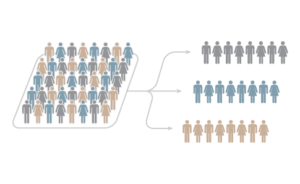
What’s Customer SegmentationAt its simplest, it’s a way of categorizing your customer base by relevant marketing parameters, including
Like many features in Magento Enterprise, customer segmentation is driven by data. Over time, results from targeted campaigns ‒ student discounts, say, or specials for repeat customers ‒ will provide the information necessary to optimize marketing resources. A well-executed customer segmentation scheme trims waste and boosts marketing efficiency. |
How Can I Set Up Customer Segmentation in Magento?
Let’s demonstrate a new campaign in action! The goal in this example is to establish a new customer segment for all customers using their company email address for registration (e.g., [email protected]).
Step by step:
- From the Magento Admin dashboard, select the Customers tab, then select Customer Segments from the drop-down menu.

Figure 1 – Select customer segments from the dropdown menu
- From the Magento Admin dashboard, select the Customers tab, then select Customer Segments from the drop-down menu.

- Click the Add Segment button on the right side of the screen.
Figure 2 – Select customer segments from the dropdown menu
- Click the Add Segment button on the right side of the screen.

- Fill out the following fields on the General Properties tab:
- Segment Name ‒ used internally.
- Description ‒ also used internally. You can be a bit more detailed here.
- Assigned to Website ‒ each segment only applies to one website because of conditional restrictions based on site-specific data. To use the same segments on multiple sites, you must duplicate them for each site.
- Status ‒ Enable the segment by selecting Active. Inactive disassociates prices rules and banners from a particular segment without having to edit them.

Figure 3 – Fill in required fields.
- Fill out the following fields on the General Properties tab:

- From the Conditions tab, you’ll be able to specify all parameters fro a particular segment. In our example:
- From the drop-down Conditions menu, select Email under Customer.
- From the drop-down operators, select Containing.
- Enter the company domain in the field. The text should now read “Customer Email contains example.com”
- Click the Save and Continue Edit button on the right side of the screen.

Figure 4 – Setting up Conditions for Customer Segment
- From the Conditions tab, you’ll be able to specify all parameters fro a particular segment. In our example:

- Magento will now check for Matched Customers. Under the Matched Customers tab, you’ll be able to see email addresses for all customers fitting the above criteria.

Figure 5 – Magento checks customers who match the criteria
- Magento will now check for Matched Customers. Under the Matched Customers tab, you’ll be able to see email addresses for all customers fitting the above criteria.
